Old Computer Failing or Dead? How to Get Your Files Off Safely
An old computer that freezes, restarts, or refuses to boot is a data problem before it is a hardware problem. The files on it are often the only copy. This guide covers what to do when a machine is unstable or dead and the data still matters, from the safest first steps to the point where continued attempts start to cost you.
If the old PC still starts and stays running, ordinary copy methods still work and they are covered further down. If it does not, go straight to the section on getting files off a computer that will not boot.
Quick answer: Stop using the failing machine. Do not run a factory reset, a clean install, or Windows repair tools on it. If the drive still reads, the data can often be copied or imaged. If the drive clicks, grinds, or disappears from Windows, stop powering it on and treat it as a recovery case.
Typical cost: Free diagnostics. Logical recovery is $120-$350 for standard cases and $350-$700 for more advanced logical cases. A straightforward transfer is $45/hr with a 1-hour minimum.
What to Rescue First When the Machine Is Unstable
Problem: Most users assume "data" is just the files in "Documents." In reality, important information is spread across hidden folders, application data, browser profiles, local email archives, and old desktop folders. On a failing machine you may not get a second attempt at any of it.
Solution: Rescue in order of value, not convenience. Copy irreplaceable items first, and always copy to a healthy destination rather than back onto the machine that is failing.
Cost: Free to $120 for DIY tools and storage, or $45/hr for professional transfer help with a 1-hour minimum.
Examples of hidden data often missed:
- Outlook PST files and local email archives.
- Browser bookmarks and saved passwords.
- QuickBooks company files and tax software data.
- Desktop-only files never saved into Documents.
- Photo metadata, album organization, and scan archives.
Option 1: Copy to an External Drive While the Old PC Still Runs

This is usually the best method for large volumes, slower rural internet, or anyone who wants a direct copy they can verify before retiring the old machine. It is also the method most tolerant of an older, slower computer.
Problem: You need to move a large amount of data without relying on cloud speed or unstable WiFi.
Solution: Use an external hard drive or SSD large enough to hold your user folders and any extra archives.
Cost: Free if you already own a drive, $60-$120 for many 1TB-2TB external drives, plus your time. Typical copy time is 1-6 hours depending on file size and drive speed.
Best for:
- Senior with photos: Simple and easy to verify folder by folder.
- Gamer with large files: Good for screenshots, mods, save backups, and media libraries.
- Small business QuickBooks machine: Good for company files, PDFs, scans, and exported email archives.
Step-by-step:
- Connect the external drive to the old computer.
- Open File Explorer and go to
C:\Users\[YourName]. - Copy these folders first: Desktop, Documents, Downloads, Pictures, Music, Videos.
- Check for business-critical folders such as QuickBooks, tax software exports, and custom scan folders.
- Export browser bookmarks if they are not already syncing.
- If you use Outlook, locate and copy PST files before retiring the old PC.
- Safely eject the external drive.
- Connect it to the new computer.
- Create matching folders on the new PC if needed.
- Copy the files into the correct user folders.
- Open a sample of photos, documents, spreadsheets, and PDFs to verify the transfer.
- Do not erase the old computer until the new one is confirmed working.
Time cost: For a 50GB photo library, expect 30-90 minutes. For a 500GB mixed archive, expect 2-6 hours.
Option 2: Cloud Storage, and Why It Is the Slowest Option Here
Problem: You want to move the files without carrying extra equipment.
Solution: Sync selected folders with OneDrive, Google Drive, or Dropbox, then sign in on the new PC.
Cost: Often Free for small transfers. Paid storage usually starts around $1.99/month+. Upload and download time can range from a few hours to several days.
Best for:
- Senior with photos: Good only if the photo library is modest and internet is stable.
- Small business QuickBooks machine: Better for exported backups than live working files.
- User with documents only: Often the easiest low-effort method.
Step-by-step:
- Sign into your cloud account on the old computer.
- Confirm available storage space before starting.
- Create one main transfer folder, then subfolders for Documents, Photos, Desktop, and Archives.
- Copy your files into the cloud-synced folder.
- Wait for the sync to finish completely. Do not shut the PC down mid-upload.
- Sign into the same cloud account on the new computer.
- Let the files download fully.
- Open a few key files to verify nothing is still cloud-placeholder only.
- Move the files into their final local folders if desired.
Time cost: A small 5GB document set may finish in 1-3 hours. A 200GB photo archive can take days on slower internet.
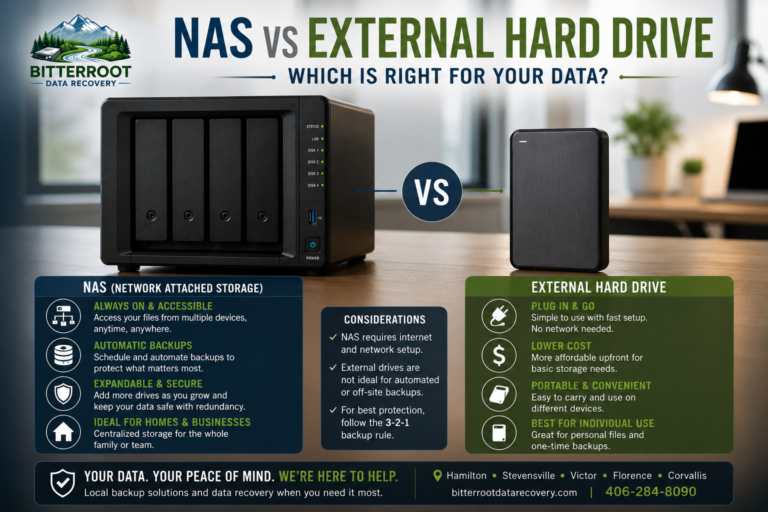
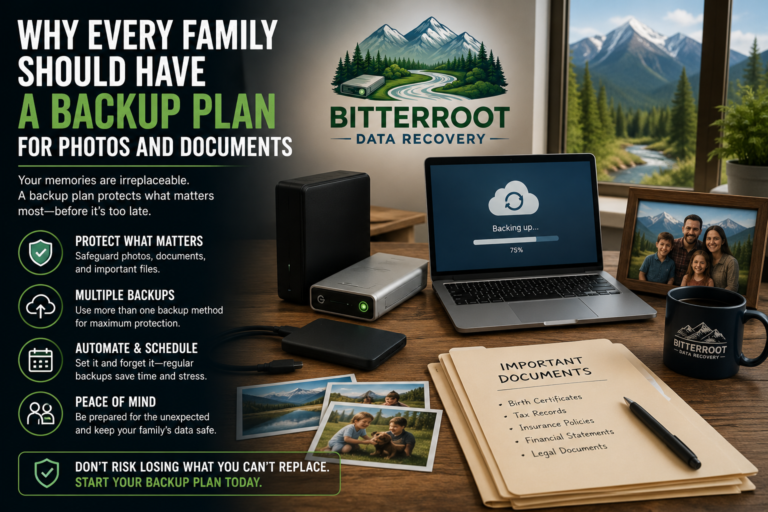
Important limitation: In Victor, Corvallis, Florence, and outlying rural areas, internet speed can make cloud transfer the slowest option. For larger photo libraries, see our guide on why every family should have a backup plan for photos and documents and our comparison of NAS vs external hard drive.
Option 3: A Migration Cable, Only If Both Computers Still Boot
Problem: You want a direct PC-to-PC copy without an intermediate drive.
Solution: Use a supported migration cable and the matching transfer software.
Cost: Usually $30-$50 for the cable and bundled software. Typical transfer time is 1-4 hours.
Best for:
- Home user replacing one Windows PC with another.
- Senior who wants a guided step-by-step process.
- User with moderate file volume and both computers working normally.
Step-by-step:
- Confirm both computers can boot and stay on.
- Install the transfer software if required.
- Connect the migration cable to both machines.
- Select the source computer and destination computer in the software.
- Choose user folders and supported settings to move.
- Exclude junk folders, temporary files, and large downloads you do not need.
- Start the transfer and keep both systems awake until it finishes.
- Verify that the destination computer received the intended files.
Time cost: Small user profiles may finish in under 1 hour. Larger sets with hundreds of gigabytes may take several hours.
Limitation: This does not reliably move every installed program. It is mainly for data and some settings.
Option 4: A Local Network Copy
Problem: You have both computers on the same home or office network and want to avoid buying hardware.
Solution: Use file sharing, Nearby Sharing, or a shared folder over your local network.
Cost: Free if the network is already working. Typical transfer time is 30 minutes to several hours based on WiFi or wired speed.
Best for:
- Small business QuickBooks machine: Best on wired Ethernet, not weak WiFi.
- Gamer with large files: Better on gigabit Ethernet than wireless.
- Light document transfer: Fine over WiFi if the volume is small.
Step-by-step:
- Put both computers on the same network.
- If possible, use Ethernet cables instead of WiFi.
- Turn on network discovery and file sharing in Windows.
- Share a folder on the old computer.
- From the new computer, browse to that shared folder.
- Copy data in logical batches such as Documents first, then Photos, then Archives.
- Verify copied file counts and test-open important files.
- Keep the old PC powered on until everything is checked.
Time cost: A few gigabytes may move in minutes. Large media libraries over WiFi can become an all-day job.
Limitation: WiFi interruptions are common. If the transfer matters, a wired connection or external drive is safer.
The "Forgotten Files" Checklist

Before you wipe your old machine, verify you have these high-value items:
- Financial Data: QuickBooks
.QBBor.QBWfiles and Sage/Peachtree databases. - Browser Profiles: Export your "Favorites" or "Bookmarks" to an HTML file.
- Tax Documents: Look for folders from TurboTax or H&R Block in your Documents folder.
- Email Signatures: These are usually stored in
AppData\Roaming\Microsoft\Signatures. - Saved Passwords: If you don't use a password manager, ensure you know your logins for your ISP email, banking, and utility accounts.
- Business records on a second drive: Client files, invoices, and scans stored on a separate internal or external drive are easy to forget.
- Software licenses and installers: Product keys, installers, and account logins for programs you paid for.
Getting Files Off a Computer That Will Not Boot or Is Failing
Problem: Your old computer no longer boots, will not power on, freezes during startup, or the drive is making clicking sounds. Standard file copy methods may no longer work. This is the most common reason people in the Bitterroot Valley bring an old machine in.
Solution: Stop repeated startup attempts. In many cases, the internal drive can be removed, connected separately, and imaged to recover accessible data. Bitterroot Data Recovery specializes in logical data recovery from internal HDDs, external hard drives, USB flash drives, SD cards, and SSDs using a non-destructive imaging process.
Cost: Free diagnostics. Logical recovery is typically $120-$350 for standard cases and $350-$700 for more advanced logical cases. No data, no charge on logical recoveries.
What this means in practice:
- If the old PC itself is dead but the drive is still readable, the data may still be recoverable.
- If Windows will not boot, a technician may still be able to image the drive and extract files.
- If the screen is cracked or the laptop will not power on, the drive can often be removed and read separately.
- If the drive is failing, continued DIY attempts can make the job harder.
Stop DIY if you see these symptoms: clicking, grinding, beeping, or repeated spin-up sounds, a drive that disappears from File Explorer, SMART warnings, or a computer that shuts down partway through a copy. Every extra power-on attempt can reduce what is recoverable. Unplug the drive, stop restarting the machine, and treat it as a recovery case rather than a transfer case.
Steps for a computer that will not boot:
- Do not run Windows repair tools, a factory reset, or a clean install on the old machine. Those steps can overwrite the files you are trying to save.
- Identify the drive type: internal HDD, internal SSD, or external drive.
- Bring the computer or the removed drive in for a free diagnostic.
- The drive is imaged without writing to your data.
- Recovered files are copied to a drive you provide or one supplied by us.
- Keep the original drive untouched until the new computer is verified.
Examples:
- Small business QuickBooks machine: Recover the QuickBooks file, exported reports, PDFs, and scanned records before moving to a replacement PC.
- Senior with photos: Recover family photo folders, scanned documents, and desktop files from a system that no longer starts.
- Gamer with large files: Recover saved games, screenshots, mods, and personal media, even if the old motherboard failed.
Important limit: If a device requires advanced physical recovery, it may need referral to a specialized recovery lab. Bitterroot Data Recovery focuses on logical data recovery and non-destructive imaging, not advanced mechanical hard-drive repair.
Related guides for failing or unreadable hardware:
- Hard Drive Says "Needs to Be Formatted"? Stop and Read This First
- Signs Your Hard Drive Is Failing Before Total Data Loss Occurs
- My USB Flash Drive Isn't Working, Can the Data Be Saved?
- Can You Recover Files After a Windows Reset?
Common Pitfalls and Technical Roadblocks
Problem: You move the files, but they do not open, sync, or behave the way you expected.
Solution: Verify software compatibility, licensing, file permissions, and account access before you retire the old PC.
Cost: DIY troubleshooting can cost hours. Professional help is $45/hr with a 1-hour minimum.
Examples of common failures:
- Old Software: A program from 2012 may not run on Windows 11.
- Lost Licenses: You have the program, but not the product key or login needed to reactivate it.
- Incompatible Formats: Older file formats may need conversion before they open correctly.
- Permissions: Files copied from an old user account may show "Access Denied" on the new machine.
- Missing Mail Data: Outlook may open, but the old local mail archive was never copied.
Professional IT Support: When You Need the Data Off It Safely

If you do not want to spend a weekend testing cables, redoing failed copies, or searching for passwords, professional transfer service is often the lowest-risk option.
Problem: You need a complete transfer with verification, not just a file dump.
Solution: Bring both computers to our Victor, MT shop. We handle data migration, verify key files, and help make sure the new machine is ready for daily use.
Cost: $45/hr with a 1-hour minimum. Many straightforward transfers take 1-2 hours. More complex cases can take longer.
Bitterroot Data Recovery specializes in logical data recovery, computer repair, data transfers, backup setup, malware removal, upgrades, and secure drive wiping. Devices requiring advanced physical recovery may need referral to a specialized recovery lab.
Searches for computer repair in Hamilton, MT or laptop repair in Stevensville, MT usually start with a slow, full, or failing old computer. Getting the data off the old machine safely comes first; repair, upgrade, or replacement decisions come after.
Our process includes:
- Verification: We check that transferred files open on the new machine.
- Data review: We help identify common missed items such as PST files, bookmarks, and business data.
- Secure wiping: After the transfer is confirmed, we can securely wipe your old drive.
- Upgrade advice: If the old computer is just slow, storage speed is often the bottleneck. See Should I Repair or Replace My Computer?.
- Repair or replace: If the machine is old enough that an upgrade is not worth it, a tune-up, a clean Windows reinstall, or a repair quote will usually tell you faster than guessing.
- Free diagnostics: We can evaluate storage issues before recommending the next step.
FAQ: Getting Files Off an Old, Failing, or Dead Computer
How long does it take to transfer everything to a new computer?
Problem: People expect the job to finish in minutes.
Solution: The total time depends on data size, drive speed, and method.
Cost in time: Small document transfers may take 30-60 minutes. Large photo or video libraries can take several hours. Cloud transfers can take days on slower internet.
Does Windows 11 have a built-in migration tool?
Problem: Many users assume Windows 11 will move everything automatically.
Solution: Windows 11 includes tools like OneDrive sync, Nearby Sharing, and network sharing, but it does not fully migrate all programs, settings, and local archives from one PC to another.
Cost: Usually Free, but limited.
Will I lose my programs when I move to a new PC?
Problem: Users often think copying the program folder is enough.
Solution: In most cases, yes, programs must be reinstalled on the new computer. Your files can transfer, but many programs and licenses do not move cleanly.
Cost: Reinstall time is often 15-60 minutes per program.
How do I transfer files from an old computer that won't turn on?
Problem: Standard transfer methods need the old PC to boot.
Solution: If the drive itself is still readable, the data can often be recovered by removing the drive and imaging it. This is common after a power failure, a surge, or a motherboard fault, and often after a laptop is dropped or has liquid spilled into it.
Cost: Free diagnostics. Logical recovery is often $120-$350, with more advanced logical cases $350-$700.
Is it safe to use a free data transfer program?
Problem: Free tools vary widely in quality.
Solution: Some are fine for simple folders. They are less reliable for business data, mail archives, and unusual file permissions. Always keep the original data untouched until the new system is verified.
Cost: The software may be Free, but a failed transfer can cost hours.
What should I do with the old computer afterward?
Problem: Old computers often get sold or donated with data still on them.
Solution: Keep it as a backup system, repurpose it after an upgrade, or have the drive securely wiped before disposal. Read our guide to secure data destruction.
Cost: Secure wipe pricing depends on the device and job scope.
How much does it cost to have someone transfer my files?
Problem: People assume every transfer requires full recovery pricing.
Solution: Standard transfer help is billed as IT support.
Cost: $45/hr with a 1-hour minimum. If the old drive is damaged and normal copying is not possible, logical recovery may range from $120-$700 depending on the case.
Is it safer to copy the files myself or have the drive imaged?
Problem: The fastest method is not always the safest, and on a failing machine a failed copy attempt is not free.
Solution: Manual copying is fine on a healthy computer. On an unstable or failing one, every power-on attempt carries risk, so imaging the drive first is safer than repeating a copy that keeps dropping out.
Cost: Free to $120 for DIY storage, or $45/hr for hands-on support. Imaging starts with a free diagnostic.
What is the fastest way to transfer files to a new computer?
Problem: Speed and safety usually pull in opposite directions.
Solution: A direct cable or wired network copy is fastest when both computers boot normally. An external SSD is nearly as fast and leaves you with a verified second copy. Cloud uploads are limited by your upload speed, which is the slowest option in most rural parts of the valley.
Cost: Free to $120 depending on the hardware you already own.
Can I transfer everything from an old laptop with a broken screen?
Problem: The laptop is unusable, but the drive inside is intact.
Solution: In most cases the drive can be removed, connected externally, and imaged. Data is then copied to the new computer and verified.
Cost: Free diagnostics. Logical recovery is typically $120-$350, with more advanced logical cases at $350-$700.
How do I know the transfer is complete?
Problem: Files appear to copy, but some are skipped, truncated, or stuck as cloud placeholders.
Solution: Compare folder sizes, confirm file counts, and open a sample of documents, photos, and spreadsheets on the new computer. Work through the forgotten files checklist above before wiping anything.
Cost: Free, but allow 15-30 minutes of verification on a large transfer.
Do I need internet access to transfer files to a new computer?
Problem: Rural connections in Corvallis, Florence, and outlying areas can make cloud transfer impractical.
Solution: No. External drives, migration cables, and local network copies all work without an internet connection. Only cloud-based transfers require one.
Cost: Free to $120 for local hardware such as an external drive or cable.
What should I do if the old computer will not start at all?
Problem: Nothing can be copied from a machine that will not boot.
Solution: The drive is removed and imaged, then the files are copied to the new computer. If the drive shows failure symptoms such as clicking or grinding, stop powering it on and bring it in for a diagnostic instead of retrying startup.
Cost: Free diagnostics. Logical recovery is $120-$350 standard or $350-$700 advanced. No data, no charge applies to logical recoveries.
Bonus: Upgrading or Repurposing the Old Computer
Do not assume the old computer is only good for disposal.
Problem: An older PC feels too slow to keep using.
Solution: In many cases, the system can remain useful after storage replacement, cleanup, or a clean Windows reinstall.
Cost: SSD upgrade labor is $50 plus the drive. A Windows reinstall is typically $50-$100. A tune-up is typically $50-$75. Malware removal is typically $75-$150.
You can read more about whether the machine is worth keeping in Should I Repair or Replace My Computer?. If you are planning a longer-term storage setup, compare NAS vs external hard drive.
Contact Us Today
We are based in Victor, MT, and serve residents and businesses throughout the Bitterroot Valley, including Hamilton, Stevensville, Victor, Corvallis, and Florence.
- Service: Professional file transfers, logical data recovery, computer repair, backup setup, upgrades, malware removal, and secure drive wiping
- Pricing: $45/hr IT support with a 1-hour minimum
- Turnaround: Many transfer jobs are completed in 24-48 hours
- Recovery diagnostics: Free
- Contact: Call (406) 284-8090, visit bitterrootdatarecovery.com, or bring your equipment in for a Free Diagnostic.
Meta description: Old computer failing or dead? Stop resetting it. How to get your files off safely, when to keep copying, when to stop, and local help in Victor, MT.
Suggested URL slug: old-computer-failing-or-dead-how-to-get-your-files-off-safely
Suggested SEO title: Old Computer Failing or Dead? How to Get Your Files Off Safely | Bitterroot Data Recovery