How to Transfer Files from an Old Computer to a New One

Moving to a new computer should be an upgrade, but for many residents in the Bitterroot Valley, the process of transferring years of data is a major source of stress. Simply dragging a few folders onto a thumb drive rarely captures the full scope of your digital life.
Why File Transfer is Harder Than It Looks
Problem: Most users assume “data” is just the files in their “My Documents” folder. In reality, your digital footprint is scattered across hidden folders, application databases, and browser settings.
Solution: A comprehensive migration strategy that accounts for application-specific data, system settings, and local archives.
Outcome: A new PC that feels exactly like your old one, with all your history intact.
Examples of hidden data often missed:
- Outlook PST files (local email archives).
- Browser Bookmarks and saved passwords.
- QuickBooks Company Files and tax software data.
- Custom fonts and printer drivers.
- Photo metadata and organization tags.
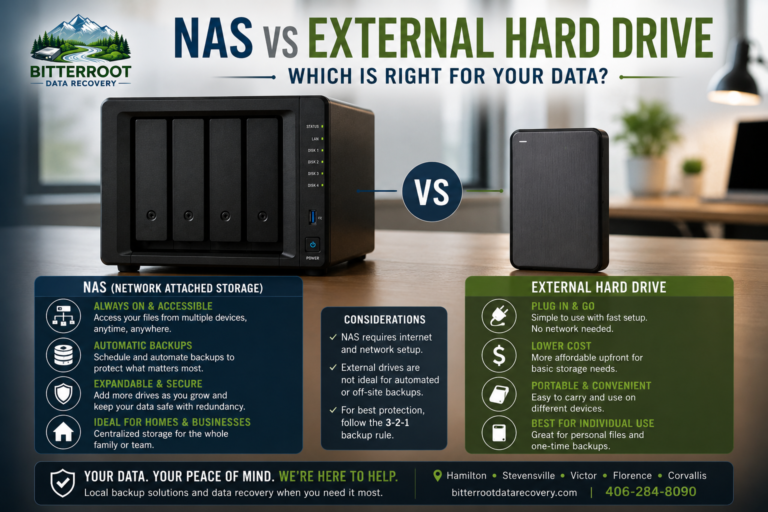
Method 1: External Hard Drive or USB Drive

This is the most reliable method for residents in Hamilton or Stevensville with large photo libraries or limited internet speeds.
Problem: Manually identifying which folders to copy.
Solution: Connect a high-capacity external drive and copy the entire User directory (C:\Users\[YourName]).
Cost: Free (if you own a drive) or $60 – $120 for a new 1TB-2TB external drive.
Steps for DIY:
- Plug in your external drive.
- Open File Explorer on the old PC.
- Copy these specific folders: Desktop, Documents, Downloads, Music, Pictures, and Videos.
- Plug the drive into the new PC and move the files into the corresponding local folders.
Method 2: Cloud Storage (OneDrive, Google Drive, Dropbox)
Problem: Moving small batches of files without hardware.
Solution: Sync your old computer’s folders to the cloud and sign in on the new machine.
Cost: Free for small amounts (up to 5GB-15GB); $1.99/month+ for larger storage tiers.
Considerations for Bitterroot Valley Residents: If you live in more rural areas of Florence or Victor with slower DSL or satellite internet, cloud transfers can take days or even fail midway through for large video collections. This method is best reserved for simple Word documents and spreadsheets.
Method 3: Direct Transfer Cable
Problem: You want a “cloning” experience but don’t have a network setup.
Solution: Use a specialized USB-to-USB migration cable (like Laplink Belkin).
Cost: $30 – $50 for the cable and software bundle.
Example Scenario: You have a Windows 10 desktop and a new Windows 11 laptop. You plug the cable into both, run the included software, and it “pushes” the data directly from one to the other. Note: These cables often require specific software versions to work between different operating systems.
Method 4: Network Transfer Over WiFi
Problem: Transferring files between two PCs in the same house without buying hardware.
Solution: Use “Nearby Sharing” in Windows 11 or set up a shared network folder.
Cost: Free.
Outcome: Works well for moving a handful of files, but is notoriously unstable for transferring hundreds of gigabytes. If your WiFi drops out, the transfer often restarts from the beginning.
The “Forgotten Files” Checklist

Before you wipe your old machine, verify you have these high-value items:
- Financial Data: QuickBooks
.QBBor.QBWfiles and Sage/Peachtree databases. - Browser Profiles: Export your “Favorites” or “Bookmarks” to an HTML file.
- Tax Documents: Look for folders from TurboTax or H&R Block in your Documents folder.
- Email Signatures: These are usually stored in
AppData\Roaming\Microsoft\Signatures. - Saved Passwords: If you don’t use a password manager, ensure you know your logins for your ISP email (Cybernet, Spectrum, etc.).
Common Pitfalls and Technical Roadblocks
Problem: You move the files, but they won’t open.
Solution: Verify software compatibility and licensing before decommissioning the old PC.
Examples of common failures:
- Old Software: A program from 2012 may not run on Windows 11.
- Lost Licenses: You have the program, but you lost the 25-digit product key required to activate it.
- Incompatible Formats: Old “Works” or “WordPerfect” files may need conversion to open in modern Microsoft Office.
- Permissions: Files copied from an old user account may show “Access Denied” on the new machine.
Professional IT Support: The “Stress-Free” Option

If you dread the idea of spending your weekend troubleshooting a transfer cable or hunting for lost passwords, Bitterroot Data Recovery offers a flat-rate IT support service.
Problem: You need a guaranteed, “everything works” transfer without the hassle.
Solution: Bring both computers to our shop. We handle the data migration, verify your software is installed, and ensure your printer and email are ready to go.
Cost: $45/hr (Typical transfers take 1–2 hours).
Our Process includes:
- Verification: We don’t just copy files; we verify they open on the new machine.
- License Recovery: We help locate and extract product keys from your old system.
- Secure Wiping: Once the transfer is confirmed, we can securely wipe your old drive to ensure your personal data doesn’t end up in the wrong hands.
- Free Diagnostics: We check the health of your new machine to ensure it’s running optimally from day one.
Bonus: Upgrading Your Old PC
Don’t throw that old computer away just yet. Often, the “slowness” is caused by an old mechanical hard drive.
The Solution: We can upgrade your old PC to a Solid State Drive (SSD).
The Outcome: This makes the old machine fast enough to serve as a secondary computer for guests or a reliable backup. Alternatively, you can browse our selection of refurbished PCs if you need a reliable second machine for your home office.
Contact Us Today
We serve residents and businesses throughout the Bitterroot Valley, including Hamilton, Corvallis, and beyond.
- Service: Professional File Migration & IT Support
- Pricing: $45/hr (1-hour minimum)
- Turnaround: Usually 24–48 hours
- Contact: Visit our website at bitterrootdatarecovery.com or bring your equipment in for a Free Diagnostic.