Corrupted SD Card Recovery: What to Do Before You Lose the Photos
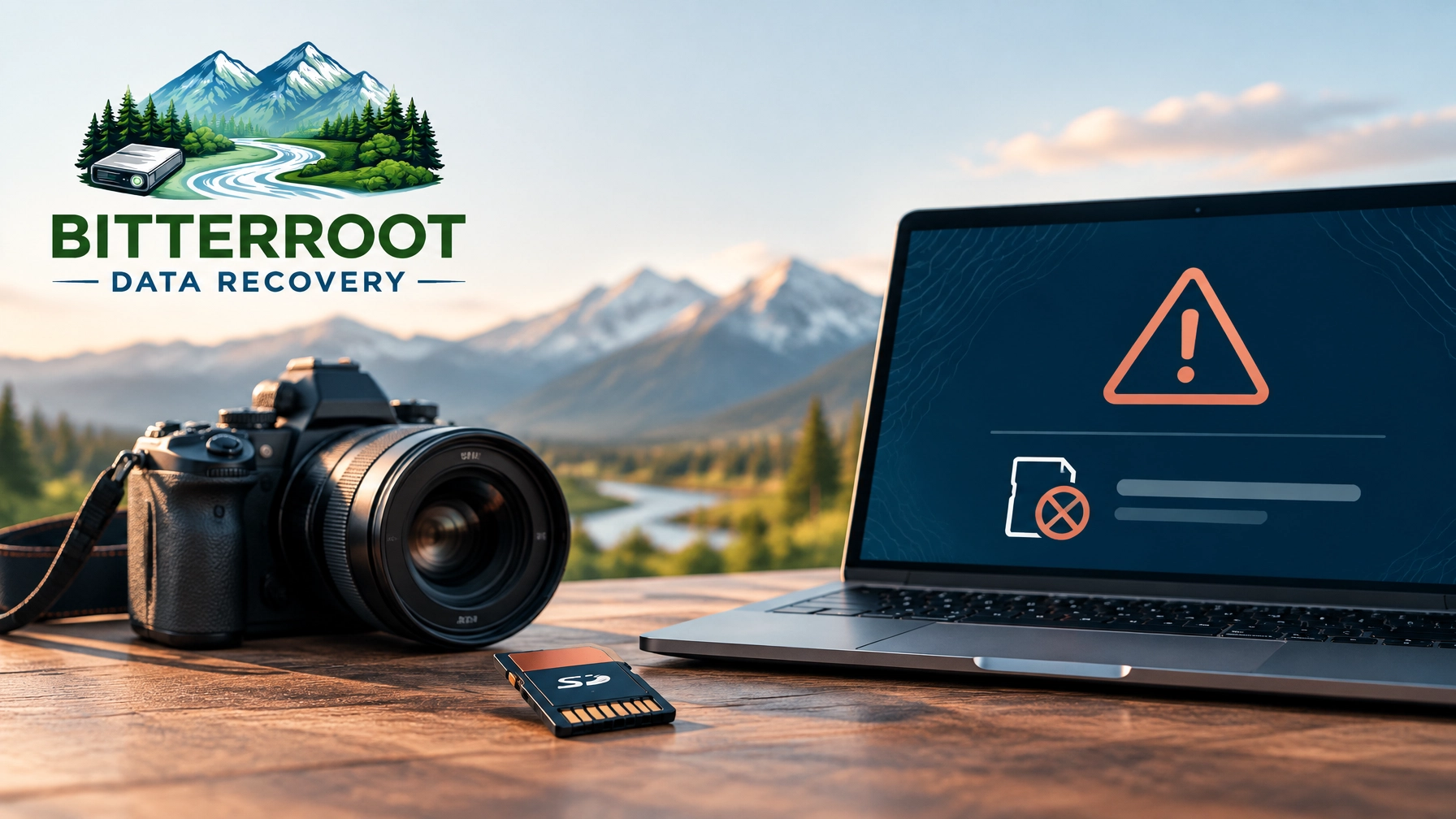
An SD card can fail without warning. The camera may show an error. A computer may ask you to format the card. Photos may appear as grey thumbnails. Important files may disappear from an otherwise familiar folder.
Do not format the card or keep using it.
The safest first step in corrupted SD card recovery is to stop changing the card. New photos, repair utilities, and repeated connection attempts can overwrite recoverable data or make the file system harder to reconstruct.
Bitterroot Data Recovery provides logical SD card recovery from Victor, Montana, for customers in Hamilton, Stevensville, Victor, Corvallis, Florence, and throughout the Bitterroot Valley.
Why SD Cards Fail
Problem
SD cards use NAND flash memory. They have no moving parts. That makes them compact and convenient, but it does not make them immune to failure.
Common causes include:
- File system corruption after an interrupted write
- Controller failure inside the card
- Wear from repeated write cycles
- Power loss while a camera or dashcam is saving a file
- Physical damage to the card, contacts, or casing
- Low-grade memory used in inexpensive cards
- Removing the card while data is still being written
Cameras, drones, dashcams, and trail cameras can place heavy write demands on a card. Continuous video recording creates more wear than occasional still photography.
Solution
Treat the card as a storage device with a limited service life. Once it shows an error, stop using it until the data has been secured.
Cost
If the card remains physically functional, logical recovery is often possible. Bitterroot Data Recovery’s standard logical recovery generally costs $120–$350. More complex logical cases generally cost $350–$700. Final pricing follows a free diagnostic.
Examples:
- A photographer loses a folder after a camera battery dies.
- A drone card displays photos from one flight but not another.
- A dashcam card becomes unreadable after months of continuous recording.
- A parent finds that a birthday folder is empty.
- A small business loses files stored on a removable SD card.
Common Corrupted SD Card Symptoms

The visible symptom helps identify whether the problem is likely a file system issue, a device compatibility issue, or a more serious card failure.
“The card needs to be formatted”
Windows or another device may display a message saying the card must be formatted before it can be used.
Do not click Format. Formatting changes the file system and can reduce the information available for recovery.
The card shows zero files or empty folders
The card may show the correct capacity, but folders appear empty. Directory information may be damaged even when photo data remains on the card.
The card is not recognized
The card may not appear in File Explorer or Finder. It may also disconnect repeatedly or show an incorrect capacity.
Photos appear as grey or corrupted thumbnails
The file names may be present, but the image preview is damaged. This can indicate incomplete file data, corruption in the file structure, or failing memory.
The card works in the camera but not the computer
The camera may read its own file structure while the computer cannot. The reader, USB connection, operating system, or file system may be responsible.
The card becomes write-protected
Some cards lock into read-only mode when the controller detects a problem. This can prevent new writes, but it does not automatically mean the existing files are gone.
Cost
A symptom alone does not determine the price. A free diagnostic identifies whether the case fits logical recovery and provides a written recommendation before paid work begins.
What Not to Do
Problem
The wrong repair step can turn a recoverable card into a more difficult case. This is especially important when the photos are from a one-time event, hunt, trip, client assignment, or family occasion.
Solution
Avoid these actions:
- Do not format the card.
- Do not run
chkdsk. - Do not use Windows “Scan and fix.”
- Do not run Disk Utility repair tools before the files are secured.
- Do not use random free recovery software directly on the original card.
- Do not keep shooting photos or recording video.
- Do not repeatedly insert and remove the card.
- Do not open, bend, cut, or disassemble the card.
Recovery software can also create risk when used incorrectly. A scan may place additional stress on an unstable card. Recovered files must be saved to a separate destination, never back to the affected card.
Cost
DIY repair may appear free. Failed attempts can increase the complexity and cost of professional recovery. Protecting the original card first gives the best chance of staying within standard logical recovery pricing.
Safe DIY Checks
Perform only checks that do not modify the card.
- Remove the card and stop recording or taking photos.
- Try a different card reader.
- Try a different USB port.
- Try the card in a different computer.
- Try the card in the original camera or device.
- Check whether it appears in Disk Management on Windows.
- Check whether it appears in Disk Utility on Mac.
- Do not initialize, erase, repair, or format it.
- If the files are visible, copy the card contents to a computer immediately.
Copy the most important files first. Use a separate healthy drive with enough free space. If the copy starts producing errors, stops repeatedly, or causes the card to disconnect, stop.
Problem
A different reader or computer can reveal a reader problem rather than an SD card problem. However, repeated testing can also create additional connection cycles.
Solution
Perform each check once. Record what the computer reports. Note the card capacity, drive letter, error message, and whether folders or files are visible.
Cost
These checks cost nothing. If the card contains irreplaceable files and is not consistently readable, a professional diagnostic is safer than repeated experimentation.
Is the Data Likely Recoverable?
Usually recoverable
Logical SD card recovery is often possible when:
- Files were accidentally deleted.
- The card was formatted once.
- The card shows the correct capacity.
- The file system is corrupted but the card remains readable.
- No new data was written after deletion or formatting.
- The card works intermittently but can still be imaged.
More difficult
Recovery becomes more difficult when:
- The card is cracked or bent.
- The contacts are damaged.
- The card is not detected by multiple readers and computers.
- The card reports an abnormal capacity.
- The controller has failed.
- The card repeatedly disconnects.
- Memory wear has caused unreadable areas.
Physical damage and controller failure are outside Bitterroot Data Recovery’s logical recovery scope. These cases may need referral to a specialized data recovery lab. Do not attempt to open or modify the card before receiving guidance.
Cost
Logical recovery follows a no cure, no fee policy. If no recoverable data is produced, there is no logical recovery charge. Cases requiring referral are explained before any additional work is recommended.
Our Logical SD Card Recovery Process

Bitterroot Data Recovery uses a non-destructive process whenever the device condition allows it.
1. Free diagnostic
We inspect the card and evaluate the symptoms. We determine whether the problem appears logical or outside our scope.
2. Non-destructive imaging
When appropriate, we create a bit-for-bit image of the card. Recovery work is performed from the image instead of repeatedly working against the original media.
3. File structure reconstruction
We analyze damaged folders, directory information, partitions, and file system structures. This can restore files that are present but no longer organized correctly.
4. File carving
If the file structure is too damaged, file carving may locate photo and video data by identifying known file patterns. File names and folder organization may not be preserved.
Expected outcome: Recoverable photos and videos are copied to a separate destination for customer review.
Many logical recovery cases can be completed in one to three days, depending on capacity, condition, and complexity.
How to Prevent Future SD Card Loss

Problem
An SD card is not a permanent photo archive. Keeping the only copy of a shoot on one card creates a single point of failure.
Solution
Use these practices:
- Follow the 3-2-1 backup rule: three copies, on two different types of storage, with one copy stored off-site.
- Offload cards after every shoot.
- Do not use one card as permanent storage.
- Format cards in the camera, not the computer.
- Replace cards that show repeated errors.
- Use reputable cards from a reliable source.
- Safely eject cards before removing them.
- Keep separate cards for separate projects when practical.
Cost
A backup drive or cloud plan costs less than recovering irreplaceable photos. Bitterroot Data Recovery also provides backup setup and data transfers for individuals and small businesses.
Examples:
- A photographer keeps the original files on a computer, a local backup drive, and cloud storage.
- A hunter copies trail-camera images before returning the card to the field.
- A drone pilot offloads footage after every flight.
- A family stores phone and camera photos in two locations.
- A Bitterroot Valley business maintains a local backup and an off-site copy of records.
Get Help With Corrupted SD Card Recovery
Stop using the card if important data is missing. Do not format it. Do not run repair utilities. Bring the card, camera, reader, or affected computer for a free diagnostic.
Bitterroot Data Recovery is based in Victor, Montana, and serves Hamilton, Stevensville, Victor, Corvallis, Florence, and nearby Bitterroot Valley communities.
- Standard logical recovery: $120–$350
- Advanced logical recovery: $350–$700
- Diagnostic: $0
- Logical recovery policy: No cure, no fee
- Typical logical turnaround: One to three days
Start a data recovery intake or contact Bitterroot Data Recovery.
Call or text (406) 284-8090.