Blue Screen of Death: What It Means, When to Worry, and How to Fix It
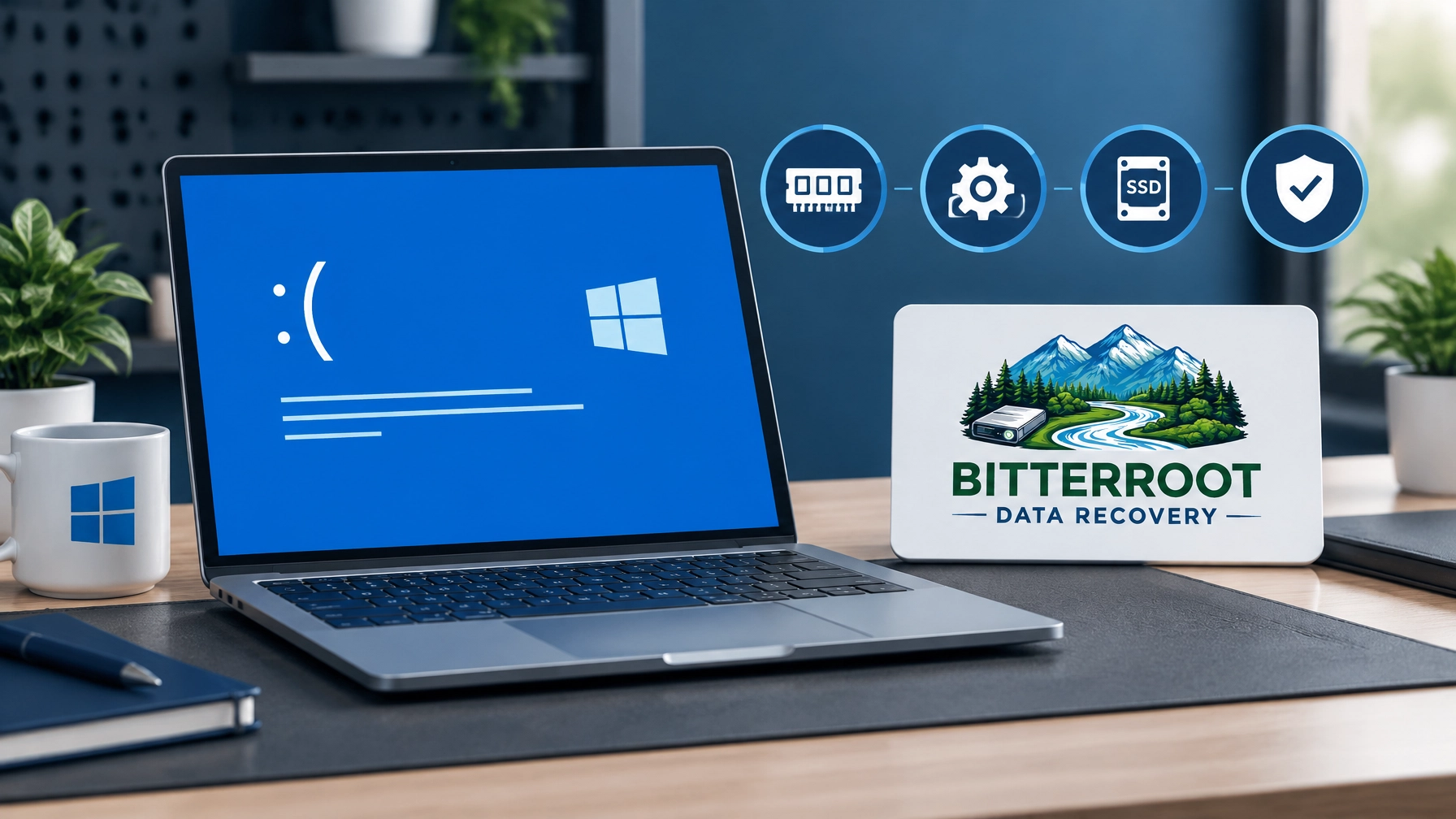
The blue screen of death, also called a BSOD or Windows stop error, appears when Windows encounters a serious problem it cannot safely recover from. Windows stops normal operation to protect system files and hardware.
A single blue screen may be temporary. A repeating blue screen can indicate a driver problem, corrupted Windows files, failing memory, or a storage device that is becoming unreliable.
If the computer cannot boot cleanly, protect important files first. Continued use can make file recovery more difficult.
What a Blue Screen of Death Means
Problem
Windows depends on system processes, device drivers, memory, and storage working together. If one of these components reports a critical error, Windows displays a stop code and restarts.
Common causes include:
- A damaged or incompatible driver
- Corrupted Windows system files
- Faulty or poorly seated RAM
- A failing hard drive or SSD
- Malware or unwanted system software
- Overheating or unstable hardware
- A recent Windows update or hardware change
A BSOD does not automatically mean the computer is permanently damaged. The stop code provides a starting point for diagnosis.
Solution
Write down the exact stop code. If possible, photograph the screen. Then note what happened immediately before the crash:
- Was new software installed?
- Was a driver updated?
- Was new hardware added?
- Did the computer freeze, slow down, or show file errors?
- Did the problem begin after a power interruption?
Microsoft’s Windows stop-code troubleshooting guide recommends checking hardware, drivers, free disk space, Windows updates, Safe Mode, and recovery options.
Cost
A basic diagnostic is available at the Bitterroot Data Recovery shop in Victor, MT. The evaluation is free before work begins.
Common BSOD Stop Codes and What They Usually Point To
A stop code is not always a final diagnosis. It identifies the type of failure Windows detected.
CRITICAL_PROCESS_DIED
Usually points to: A critical Windows process stopped unexpectedly.
Possible causes include corrupted system files, storage errors, failed updates, or an unstable driver.
Examples:
- Windows files damaged after a forced shutdown
- A system drive with file-system corruption
- A recently installed driver or security utility
- Malware interfering with system processes
Start with Safe Mode, Windows updates, driver review, and system-file diagnostics. If the code repeats, check drive health before attempting a Windows reinstall.
MEMORY_MANAGEMENT
Usually points to: A serious problem involving memory management.
Possible causes include defective RAM, a memory-related driver, paging-file problems, or storage errors.
Examples:
- A desktop RAM module that is not seated correctly
- Failing laptop memory
- A driver writing invalid data to memory
- A nearly full or unstable system drive
Windows Memory Diagnostic can identify some memory problems. Repeated errors require more complete testing.
IRQL_NOT_LESS_OR_EQUAL
Usually points to: A kernel-level driver or component accessed memory incorrectly.
Possible causes include faulty drivers, incompatible hardware, or defective RAM.
Examples:
- A recently updated network, graphics, or storage driver
- Third-party security software
- A new USB device
- Memory errors that corrupt driver operations
If the computer works normally in Safe Mode, a third-party driver or service becomes more likely.
UNMOUNTABLE_BOOT_VOLUME
Usually points to: Windows cannot access or mount the system volume.
Possible causes include file-system corruption, boot-configuration problems, or a failing storage device.
Examples:
- Windows reports that it cannot start
- The system drive appears as RAW
- The computer crashes during startup
- A drive becomes unusually slow or disconnects
Do not repeatedly force-restart the computer. If important files are still needed, stop and request a diagnostic before running repair commands or reinstalling Windows.
WHEA_UNCORRECTABLE_ERROR
Usually points to: Windows detected an uncorrectable hardware error.
Possible causes include memory, processor, motherboard, graphics hardware, power, or another hardware device.
Examples:
- BSODs during demanding tasks
- Crashes after a hardware upgrade
- Repeated crashes with different stop codes
- System instability after overheating
This code deserves prompt testing. Updating Windows may help, but a recurring WHEA error should not be treated as a normal software glitch.
KERNEL_SECURITY_CHECK_FAILURE
Usually points to: Windows detected corruption in a protected kernel data structure or security-related process.
Possible causes include incompatible drivers, memory corruption, system-file damage, or low-level utilities.
Examples:
- Crashes after installing a driver package
- Errors following antivirus or VPN software changes
- Memory-related corruption
- Damaged Windows components
Driver review, memory testing, and Windows system-file checks are appropriate first steps.

One-Time Crash or Repeating BSOD Loop?
Problem
A one-time blue screen after a temporary software or hardware error may not return. A repeating crash is different.
Warning signs include:
- The same stop code appears repeatedly
- The computer crashes during startup
- Windows restarts before reaching the desktop
- The system enters a repair loop
- Multiple stop codes appear over several days
- Files become slow to open or produce errors
- The drive disappears from File Explorer or BIOS/UEFI
A repeating BSOD may be logical or software-related. It can also indicate failing memory or a failing drive.
Solution
Use this decision point:
- One-time crash: Restart, install pending Windows updates, and monitor the system.
- Repeated crashes: Start in Safe Mode and preserve important data.
- Boot loop: Stop repeated force-restarts. Request a diagnostic.
- Clicking, grinding, or severe drive instability: Power down and seek data recovery guidance.
Devices requiring advanced physical recovery may need referral to a specialized data recovery lab. Bitterroot Data Recovery specializes in logical data recovery, computer repair, backup setup, data transfers, malware removal, upgrades, and secure drive wiping.
Cost
Logical data recovery typically ranges from $120–$350 for standard cases and $350–$700 for advanced logical cases. Evaluations are free, and the policy is no cure, no fee.
Safe Checks You Can Try
Problem
A BSOD can be caused by a simple driver or update issue. Some checks are reasonable for a computer that still boots reliably.
Solution
Try these steps in order:
- Restart once. If Windows starts normally, save important files immediately.
- Start in Safe Mode. If the crash stops in Safe Mode, software or a third-party driver is more likely.
- Check free space. Keep approximately 10% to 15% of the system drive free.
- Install Windows updates.
- Review Device Manager. Look for devices with a yellow warning symbol.
- Roll back a recent driver or remove recently added hardware.
- Run Windows Memory Diagnostic.
- Check drive health indicators. Watch for slow file access, disconnects, read errors, unusual noise, or repeated repair messages.
- Reseat desktop RAM only if you are comfortable doing so. Shut down fully, disconnect power, and avoid opening a laptop unless you know the correct procedure.
Back up files before extensive troubleshooting. If the computer cannot boot cleanly, stop using it.
Cost
Professional troubleshooting is available through Bitterroot Data Recovery computer repair services. General IT support is $45 per hour with a one-hour minimum.
What Not to Do After a BSOD
Problem
The wrong repair can overwrite recoverable data or make the original problem harder to diagnose.
Solution
Avoid these actions when important files are still needed:
- Do not run registry cleaners.
- Do not keep force-rebooting through a boot loop.
- Do not immediately reset the PC.
- Do not reinstall Windows before checking for needed files.
- Do not write recovered files back to the original drive.
- Do not continue using a drive that clicks, grinds, freezes, disconnects, or becomes extremely slow.
A clean Windows installation can overwrite recoverable data. A repair command can also change the file system. Data protection comes before system repair when the drive contains irreplaceable files.

Professional Repair Options and Costs
Computer tune-up
Problem: The computer is slow, unstable, or affected by software buildup.
Solution: A tune-up reviews startup software, updates, system performance, and common software causes.
Cost: $50–$75
Examples:
- Slow startup
- Frequent freezes
- Excess background programs
- General Windows performance issues
Virus and malware removal
Problem: Malware can damage system files, install unstable software, or trigger crashes.
Solution: Malware cleanup removes viruses, browser hijackers, unwanted programs, and related security issues.
Cost: $75–$150
Examples:
- Popups and browser redirects
- Suspicious programs
- Sudden slowdown
- Security warnings that will not stop
Clean Windows reinstallation
Problem: Windows may be too damaged to repair through normal troubleshooting.
Solution: A clean installation replaces the operating system. Files must be checked and backed up first.
Cost: $50–$100
Examples:
- Corrupted Windows installation
- Repeating software errors
- Windows will not start
- Severe driver or system-file problems
SSD upgrade and data transfer
Problem: An aging hard drive can cause slow starts, freezes, and storage-related crashes.
Solution: An SSD upgrade replaces the storage device and can include a data transfer.
Cost: $50 labor plus the cost of the SSD
Examples:
- Long boot times
- Applications taking minutes to open
- A slow older computer
- A system drive showing health warnings
Backup setup
Problem: A BSOD can put unsaved work and the file system at risk.
Solution: Automated external-drive or cloud backup protects documents, photos, and business files.
Cost: $120–$300. A 1TB backup drive with setup is available for $180.
Examples:
- Home photo backup
- Small business workstation backup
- Automated document protection
- Cloud backup configuration
Logical data recovery
Problem: Files may be inaccessible after a crash, failed boot, formatting error, or corrupted partition.
Solution: Bitterroot Data Recovery uses non-destructive logical recovery and imaging methods when the device remains readable.
Cost: Standard recovery is $120–$350. Advanced logical recovery is $350–$700.
Examples:
- Deleted files
- RAW partitions
- Corrupted file systems
- External drives that will not open
- Files needed before a Windows reinstall
The service includes free diagnostics and a no cure, no fee policy. Devices with advanced physical failure may require referral to a specialized recovery lab.
Local BSOD Help in the Bitterroot Valley
Bitterroot Data Recovery is based in Victor, MT, serving residents and small businesses in Victor, Stevensville, Hamilton, Corvallis, Florence, and surrounding communities.
If you are searching for computer repair Hamilton MT, laptop repair Stevensville MT, a virus removal service, an SSD upgrade service, or data recovery near me, start with a diagnostic that protects your files before attempting a reset or reinstall.
Call or text (406) 284-8090 for a free diagnostic and upfront pricing.
Frequently Asked Questions
Is one blue screen of death a serious problem?
Not always. A single crash may be caused by a temporary driver or software error. If it repeats, crashes during startup, or is accompanied by file errors, have the computer evaluated.
Can a BSOD erase my files?
A BSOD does not normally erase files by itself. However, repeated crashes, storage failure, forced shutdowns, and repair attempts can damage the file system or make files harder to recover.
Should I reinstall Windows after a BSOD?
Not before checking whether important files are still needed. A clean reinstall can overwrite recoverable data. Back up or evaluate the drive first.
Can malware cause a blue screen?
Yes. Malware and unwanted software can interfere with drivers, system files, and security components. Virus and malware removal typically costs $75–$150.
Can a failing SSD cause a blue screen?
Yes. A failing SSD can cause boot-volume errors, file corruption, freezing, and repeated crashes. Check drive health and protect data before continued use.
What if the computer clicks or grinds?
Power it down. Clicking or grinding can indicate a physical storage problem. Bitterroot Data Recovery can perform an initial evaluation, but advanced physical recovery may require referral to a specialized recovery lab.
How do I get help from Bitterroot Data Recovery?
Call or text (406) 284-8090. The Victor, MT shop provides free diagnostics, clear estimates, and logical recovery under a no cure, no fee policy.