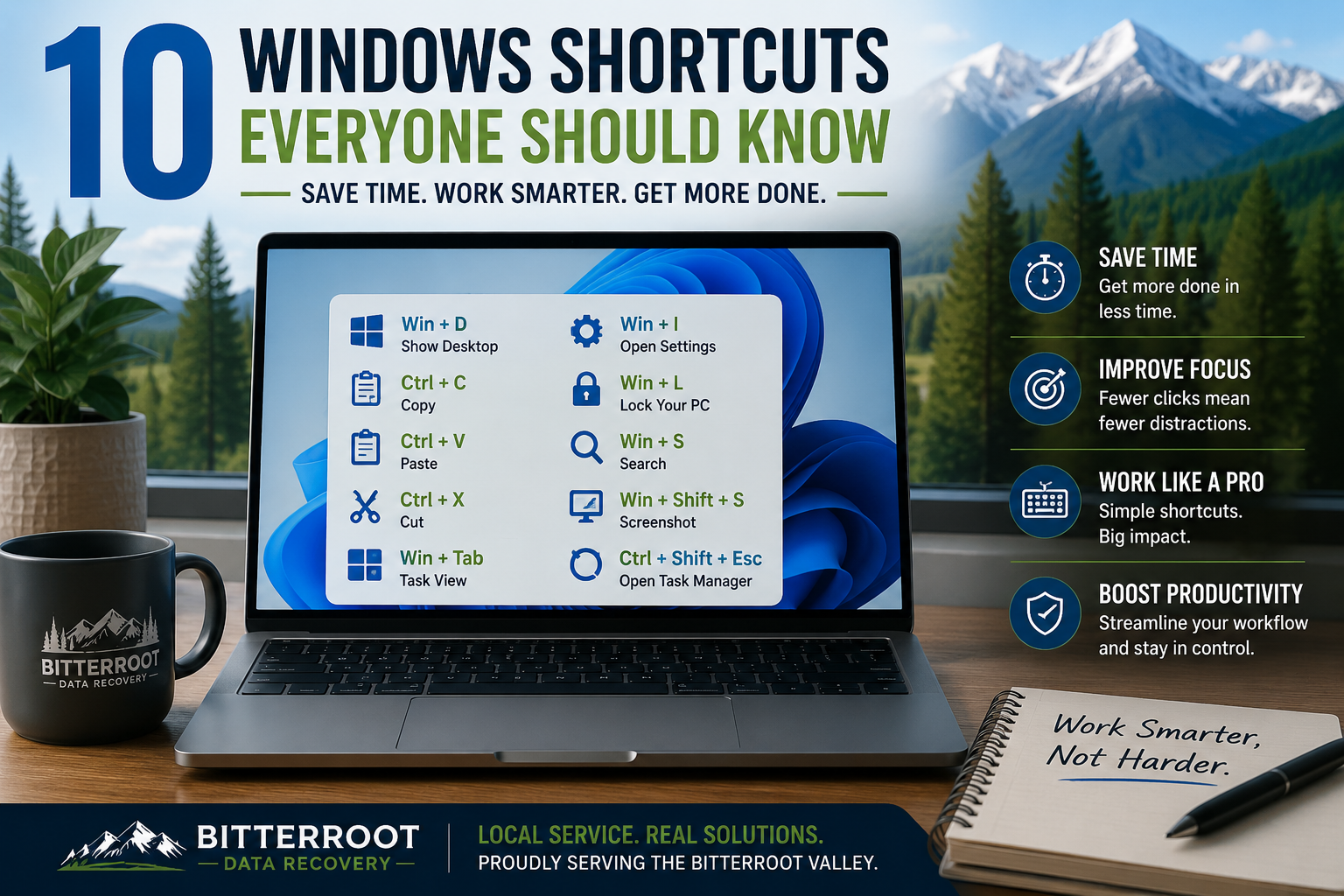
10 Windows Shortcuts Everyone Should Know

Efficiency on a computer is not just for tech experts. Whether you are managing a small business in Hamilton, finishing a school project in Corvallis, or organizing family photos in Stevensville, knowing a few keyboard tricks can save you hours of frustration. Using a mouse for every single action is slow and puts unnecessary strain on your wrists.
At Bitterroot Data Recovery, we see many customers who struggle with slow workflows or “frozen” screens that could be managed quickly with the right commands. These Windows tips and tricks are designed to help you navigate your PC like a pro.
1. Win + D : Show or Hide Your Desktop
Problem: You have twelve windows open: email, a web browser, QuickBooks, and several folders: and you need to find a file sitting on your desktop immediately. Clicking the “minimize” button on every single window is tedious. Solution: Press the Windows Key + D. Outcome: All open windows instantly minimize, revealing your desktop. Press it again to bring everything back exactly where it was.
Examples:
- Small Business: Quickly accessing a tax document on your desktop while a customer is waiting at your shop in Victor.
- Home Use: Hiding your shopping list when a family member walks into the room.
- Student: Finding a saved PDF for a paper without closing your research tabs.
2. Win + E : Open File Explorer
Problem: You need to find a photo from your last trip to the Bitterroot River, but you don’t want to navigate through the Start menu to find your folders. Solution: Press the Windows Key + E. Outcome: This opens a new File Explorer window immediately.
Examples:
- Homeowner: Opening your “Pictures” folder to sort through photos of the Bitterroot Valley landscape.
- Business: Navigating to your “Invoices” folder to pull up a bill for a client in Florence.
- Retiree: Finding a saved letter to a relative in your “Documents” folder.
3. Win + I : Open Windows Settings
Problem: Your Wi-Fi is acting up, or you need to check your Windows Update status, but finding the “Settings” gear icon in the menu takes too many clicks. Solution: Press the Windows Key + I. Outcome: The main Windows Settings menu opens instantly.
Examples:
- Troubleshooting: Quickly checking your internet connection when your Hamilton MT home office loses signal.
- Customization: Changing your display brightness or background image to a photo of the Sapphire Mountains.
- Maintenance: Checking for critical security updates to keep your data safe.
4. Win + L : Lock Your PC

Problem: You are working at a coffee shop in Hamilton or leaving your desk at a local business, and you don’t want anyone accessing your private files while you step away. Solution: Press the Windows Key + L. Outcome: Your computer locks immediately and requires your password or PIN to get back in. Your open apps stay running exactly as they were.
Examples:
- Privacy: Stepping away from your computer at a public library in Stevensville.
- Security: Locking your screen at the office before heading to lunch at a local cafe.
- Compliance: Ensuring patient or client data is hidden when you walk away from your workstation.
5. Win + V : Enable and Use Clipboard History

Problem: You copied a link, then you copied a phone number, and now you’ve “lost” the link because you can only paste the last thing you copied. Solution: Press the Windows Key + V. Outcome: This opens your Clipboard History. If it is your first time using it, click “Turn On.” Now, Windows will remember the last 25 items you copied (text and images).
Examples:
- Data Entry: Copying multiple addresses from an email and pasting them one by one into a spreadsheet.
- Research: Saving several quotes from different websites for a history project at Corvallis High School.
- Communication: Keeping a standard “Thank You” message in your history to paste into various emails to customers.
6. Win + Shift + S : The Snipping Tool (Screenshots)
Problem: You want to save a specific part of a webpage: like a map of a hiking trail or a recipe: but you don’t want to capture your whole screen or print the entire page. Solution: Press Windows Key + Shift + S. Outcome: The screen dims, and you can draw a box around exactly what you want to save. The “snip” is then copied to your clipboard, ready to be pasted into an email or saved as a file.
Examples:
- Local Info: Sniping a screenshot of the Stevensville community calendar to send to a friend.
- Tech Support: Taking a picture of an error message to email to us for a laptop repair Stevensville MT consultation.
- Shopping: Saving a picture of a tool you want to buy at a local hardware store.
7. Alt + Tab : Switch Between Open Apps

Problem: You are writing an email in one window but need to look at a spreadsheet in another. Clicking back and forth on the taskbar is slow. Solution: Hold the Alt key and tap the Tab key. Outcome: A menu appears showing all open programs. Tapping Tab lets you cycle through them. Release the keys to “land” on the app you want.
Examples:
- Multitasking: Moving between a Zoom meeting and your notes.
- Home Finance: Switching between your online bank portal and your budget file.
- Creativity: Toggling between a photo editing app and your file folders.
8. Ctrl + Shift + Esc : Open Task Manager Directly

Problem: Your computer feels sluggish, or a program has frozen and won’t close. You need to see what is “eating” your computer’s memory. Solution: Press Ctrl + Shift + Esc. Outcome: This opens the Task Manager directly (skipping the middle screen of Ctrl+Alt+Del). You can see which apps are using the most CPU or memory and end “not responding” tasks.
Examples:
- Performance Check: Seeing if a background update is slowing down your PC while you try to work in Victor.
- Troubleshooting: Closing a web browser that has frozen on a heavy website.
- Optimization: Checking if your startup apps are making your computer take too long to turn on.
9. Win + Tab : Task View and Virtual Desktops
Problem: Your screen is too cluttered. You wish you had a second monitor to separate your “Work” files from your “Personal” browsing. Solution: Press the Windows Key + Tab. Outcome: This opens Task View. At the top, you can click “New Desktop.” You can have one “Desktop” for your business in Hamilton and another for your hobby research.
Examples:
- Organization: Keeping your farm management software on one desktop and your social media on another.
- Education: A student in Florence keeping their math homework on Desktop 1 and their English project on Desktop 2.
- Clutter Control: Moving all your background “distractions” to a separate virtual space.
10. Ctrl + Z and Ctrl + Y : Undo and Redo
Problem: You just accidentally deleted a paragraph of text, or you moved a file into the wrong folder and don’t know where it went. Solution: Press Ctrl + Z to Undo. If you realize you actually wanted that change, press Ctrl + Y to Redo. Outcome: Windows “rewinds” your last action. This works in Word, Excel, File Explorer, and most creative software.
Examples:
- Mistake Correction: Instantly restoring a file you accidentally dragged into the Recycle Bin.
- Editing: Reversing a formatting change in a document that didn’t look right.
- File Management: “Undoing” a folder move if you accidentally dropped it into the wrong directory.
Professional Computer Repair & Optimization in the Bitterroot Valley
Sometimes, keyboard shortcuts aren’t enough. If your computer is consistently slow, freezing, or behaving strangely, it might need more than a quick fix. At Bitterroot Data Recovery, we offer professional computer repair Hamilton MT residents can rely on.
We provide a Computer Repair & Optimization service that addresses the root causes of performance issues.
| Service Item | Description | Cost / Outcome |
|---|---|---|
| Diagnostic | Full system evaluation to identify hardware or software faults. | FREE |
| Performance Tune-Up | Virus removal, bloatware cleanup, and startup optimization. | $50 – $75 |
| SSD Upgrade | Replacing an old slow HDD with a high-speed Solid State Drive. | Boosts speed by 5x-10x |
| OS Reinstall | Clean installation of Windows to resolve deep-seated corruption. | Restores “Like New” speed |
Whether you need computer repair Bitterroot Valley locals trust or specialized laptop repair Stevensville MT services, we are here to help. We prioritize non-destructive methods and offer a “no data, no charge” guarantee on our recovery services.
Get Back to Work Faster
Mastering these shortcuts is the first step to a better computing experience. If you find that your Windows PC is still giving you trouble despite these tips, don’t let it interrupt your day.
If you’re ever stuck with a Windows issue that shortcuts can’t fix, Bitterroot Data Recovery is here to help. Contact us at (406) 284-8090 or contact@bitterrootdatarecovery.com for a free diagnostic.