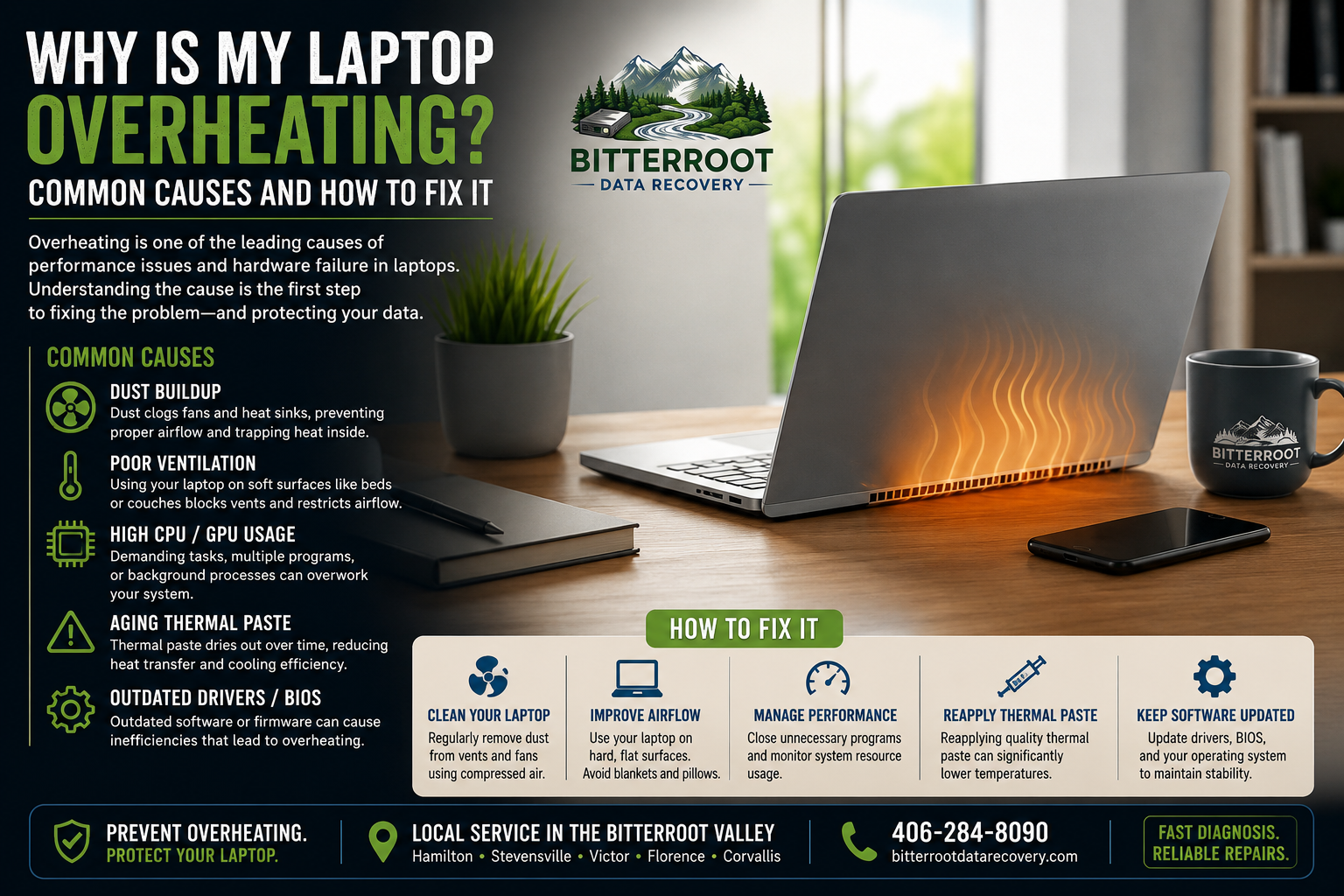
Why Is My Laptop Overheating? Common Causes and How to Fix It

Heat is the primary cause of hardware failure in portable computers. Unlike desktop towers, laptops house high-performance components in extremely confined spaces. When the cooling system fails to exhaust heat efficiently, internal temperatures spike. This leads to permanent component damage, data loss, and system instability.
If you are a student in Hamilton, a business owner in Stevensville, or a retiree in Florence, understanding why your laptop is hot to the touch is critical to extending the life of your device. This guide breaks down the technical causes of overheating, the symptoms you should watch for, and the professional solutions available in the Bitterroot Valley.
1. Dust Accumulation and Clogged Airflow
The Problem: Over time, the cooling fans in your laptop act like small vacuum cleaners. They pull in air to cool the CPU and GPU, but they also pull in dust, pet hair, and lint. This debris collects on the cooling fins of the heatsink, creating a thick “blanket” that traps heat inside the chassis.
The Solution: Regular internal cleaning is required to maintain airflow. For minor buildup, compressed air can clear external vents. For heavy accumulation, the laptop must be disassembled to clean the fan blades and heatsink directly.
The Cost:
- DIY: $5–$10 for a can of compressed air.
- Professional: A Computer Tune-Up ($50–$75) at Bitterroot Data Recovery includes a comprehensive internal dusting and air-path optimization.

2. Thermal Paste Degradation
The Problem: Heat is transferred from your processor to the copper heatsink via a specialized material called thermal paste. When a laptop is new, this paste is pliable and highly conductive. After 2–4 years of heat cycles, the paste dries out and cracks. This creates air gaps that prevent heat from leaving the processor.
The Solution: The old, brittle paste must be surgically removed using high-purity isopropyl alcohol. New, high-performance thermal compound is then applied to restore efficient heat transfer.
The Cost:
- Professional: Thermal paste reapplication is typically included in our overheating laptop repair services. Prices vary by model due to disassembly complexity but generally fall within the standard repair labor rates.
3. Mechanical Fan Failure
The Problem: Laptop fans are mechanical parts with bearings. Eventually, these bearings wear out. You may hear a grinding, rattling, or high-pitched whining noise. In some cases, the fan stops spinning entirely. Without an active fan, a laptop will reach critical temperatures within minutes of booting.
The Solution: Mechanical fans cannot be “oiled” or repaired effectively. A total laptop fan replacement is the only reliable fix.
The Cost:
- Professional: Labor for fan replacement starts at $50, plus the cost of the specific replacement part (typically $15–$45 depending on the brand).
4. Software Loads and Aging Hardware
The Problem: Running modern, resource-heavy software on older hardware forces the CPU to work at 100% capacity constantly. This generates maximum heat. Background processes, malware, or outdated drivers can also cause “runaway” CPU usage, keeping your laptop hot even when you aren’t doing anything.
The Solution: Audit your startup programs and background tasks. If the hardware is simply too old for the software, a hardware upgrade or a clean Windows Reinstallation ($50–$100) can reduce the “bloat” that causes excess heat.
The Cost:
- Software Optimization: Included in our $50–$75 Computer Tune-Up.
- Hardware Diagnostics: FREE at Bitterroot Data Recovery.
5. Environmental and Usage Factors
The Problem: Laptops are often used on soft surfaces like beds, couches, or laps. These surfaces conform to the bottom of the laptop, instantly blocking the intake vents. Additionally, using a laptop in a hot environment (like a sunlit porch in Victor or Corvallis) reduces the “delta” between the hardware and the air, making cooling much harder.
The Solution: Use the laptop only on hard, flat surfaces. Elevating the rear of the laptop by just half an inch can increase airflow by up to 20%.
The Cost:
- DIY: $0. Simply changing your usage habits is the most cost-effective way to prevent overheating.
Signs Your Laptop Is Overheating
Identify these symptoms early to avoid a total system failure. If your device exhibits more than two of these signs, it requires immediate attention.
- Sudden Shutdowns: The laptop powers off abruptly without a “Shutting Down” screen. This is a thermal safety trip to prevent the CPU from melting.
- Loud Fan Noise: The fan sounds like a jet engine and never slows down, even during basic tasks like checking email.
- Throttled Performance: The computer becomes extremely slow or “laggy.” This is “thermal throttling,” where the CPU intentionally slows itself down to generate less heat.
- Hot to the Touch: The keyboard or the bottom of the case feels uncomfortably hot.
- System Errors: Frequent “Blue Screen of Death” (BSOD) errors or graphical artifacts (lines/dots on the screen).
Immediate DIY Steps for Residents in the Bitterroot Valley
If your laptop is running hot right now, follow these steps:
- Power Down: Shut the computer off completely. Do not just “Sleep” or “Hibernate” it.
- Clear the Vents: Use short bursts of compressed air on the side and bottom intake/exhaust vents.
- Relocate: Move the device to a hard surface in a cool room.
- Wait: Allow 30 minutes for the internal components to return to room temperature.

The Side Benefit: SSD Upgrades for Heat Reduction
Many older laptops in the Bitterroot Valley still use traditional mechanical Hard Disk Drives (HDDs). These drives contain spinning platters and moving heads that generate significant internal heat.
Upgrading to a Solid State Drive (SSD) provides two major benefits:
- Lower Heat: SSDs have no moving parts and generate negligible heat compared to HDDs.
- Massive Speed: Your laptop will boot in seconds and feel brand new.
The Cost:
- SSD Upgrade: $50 labor + the cost of the SSD. This is one of the most effective ways to modernize a laptop while reducing its thermal footprint.

When to Seek Professional Laptop Repair in Hamilton, MT
DIY cleaning is a great first step, but it cannot solve mechanical failure or degraded thermal paste. You should bring your laptop to Bitterroot Data Recovery if:
- The fan is making grinding or rattling noises.
- The laptop still shuts down after you have cleaned the vents.
- The fan does not spin at all when the laptop is turned on.
- The device is more than 3 years old and has never had the thermal paste replaced.
We provide expert computer repair in Stevensville, MT and surrounding areas. Our process is transparent and designed to get you back to work quickly.
Why Choose Bitterroot Data Recovery?
- Free Diagnostics: We identify the exact cause of your overheating at no cost to you.
- Transparent Pricing: You know the cost before we begin the repair.
- No Cure, No Fee: For logical data recovery services, if we don’t get your data, you don’t pay.
- Local Expertise: We serve our neighbors in Hamilton, Stevensville, Victor, Corvallis, and Florence.
| Service Type | Key Outcome | Estimated Price |
|---|---|---|
| Computer Tune-Up | Dust removal, optimization, health check | $50 – $75 |
| Diagnostic | Identification of thermal or hardware issues | FREE |
| SSD Upgrade | Reduced heat, 10x speed increase | $50 + Part |
| Fan Replacement | Restore active cooling to the system | $50 + Part |
| Windows Reinstall | Eliminate software-induced overheating | $50 – $100 |
Contact Us for a Cool-Running Laptop
Don’t wait for a thermal shutdown to corrupt your files or fry your motherboard. Overheating is a progressive problem that only gets worse with time. Whether you need a simple cleaning or a complex laptop fan replacement, we are here to help.
Bitterroot Data Recovery Serving the entire Bitterroot Valley.
- Call/Text: (406) 284-8090
- Email: contact@bitterrootdatarecovery.com
- Service Area: Hamilton, Stevensville, Victor, Corvallis, Florence, MT.
Stop by for a free diagnostic today and keep your technology running at peak performance.