Printer Not Working? Here’s How to Fix It Before You Call Anyone
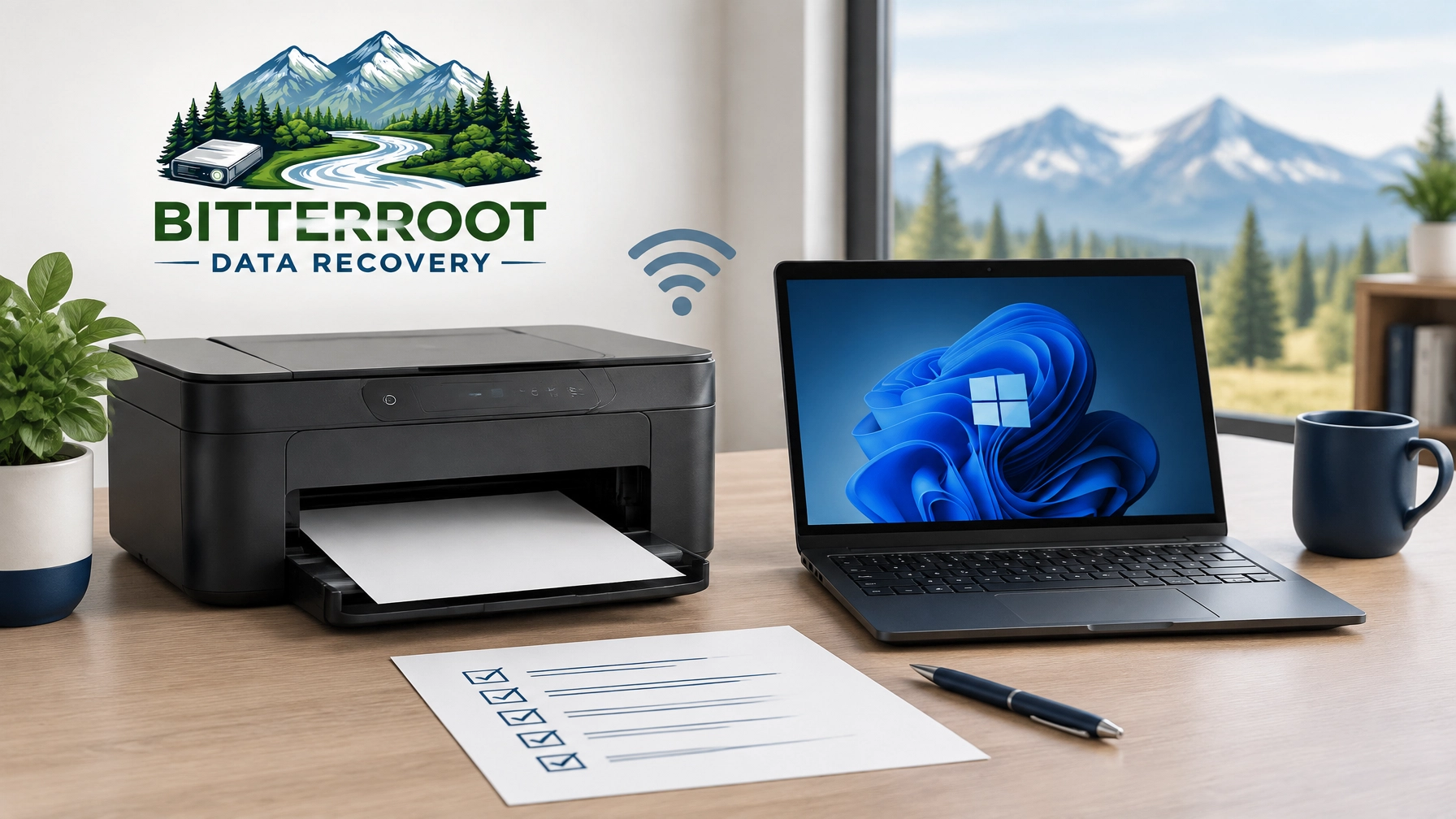
A printer that suddenly stops working can disrupt a home office, delay a small business, or ruin plans to print family photos. It can also be difficult to identify the cause because several systems must work together.
This checklist starts with the simple causes and moves toward more technical problems. Work through it in order. Stop when the printer works.
Bitterroot Data Recovery is based in Victor, Montana, and provides printer setup and IT support for homes and small businesses in Hamilton, Stevensville, Victor, Corvallis, Florence, and throughout the Bitterroot Valley.
Why Printers Are So Frustrating
The problem
A printer is not one system. It is a stack of three systems:
- The printer: power, paper, ink or toner, sensors, rollers, and internal hardware.
- The connection: USB, Wi-Fi, Bluetooth, or a wired network.
- The computer software: Windows settings, the print queue, and the printer driver.
A failure in any layer can make the printer appear broken. The printer may be powered on but disconnected. Windows may show it as available but send jobs to the wrong device. A driver may be damaged after an update.
The solution
Troubleshoot from the outside in:
- Check power, paper, ink, and the printer cover.
- Check the connection.
- Clear stuck print jobs.
- Confirm the correct printer is selected.
- Reinstall the driver.
- Check the printer’s network address.
- Inspect for hardware failure.
The cost
Most basic fixes cost nothing except a few minutes. If the issue involves network configuration, drivers, or multiple computers, professional IT support can be more efficient than repeated trial and error.
Fix 1: Check the Simple Stuff First

The problem
Printers often report a software-looking error when the real issue is physical.
The solution
Check each item:
- Is the power cable connected at both ends?
- Is the printer turned on?
- Does the display show “Ready”?
- Is there paper in the correct tray?
- Is the paper loaded straight?
- Is the ink or toner cartridge empty?
- Is the lid or cartridge access door fully closed?
- Is there a visible paper jam?
- Are any warning lights or error codes showing?
Turn the printer off. Unplug it for 30 seconds. Plug it back in and allow it to finish starting before sending another job.
For USB printers, reseat the USB cable at the computer and printer. Avoid using a USB hub during testing.
The cost
This fix is free. Do not buy ink or replace hardware until the printer passes these basic checks.
Examples:
- A retiree’s photo printer may refuse to print because the paper tray is not fully closed.
- A front-desk printer may stop because one sheet is caught behind the rear access panel.
- A home office printer may show “offline” after its power strip was switched off.
Fix 2: Check the Printer Connection

The problem
Many “printer not working” problems are connectivity problems. The printer and computer may both be working but unable to communicate.
The solution
Identify the connection type.
USB
- Confirm the cable is connected.
- Try a different USB port on the computer.
- Avoid a docking station or hub during testing.
- Restart the computer after reconnecting the printer.
Wi-Fi
- Confirm the printer shows a Wi-Fi connection.
- Confirm the computer and printer use the same Wi-Fi network name.
- Avoid using a guest network.
- Check whether your router separates 2.4 GHz and 5 GHz networks.
The 2.4 GHz band generally travels farther and works with more older printers. Some older printers cannot connect to 5 GHz at all. If the printer is on one band and the computer is isolated on another network, Windows may not find it.
Open Settings > Bluetooth & devices > Printers & scanners. Select the printer. It should show as Online, not Offline.
Bluetooth
Bluetooth printers must be paired with the computer. Confirm Bluetooth is enabled and that the printer is still listed under connected devices. Bluetooth is less common for office printers but may be used for compact photo printers.
See Microsoft’s guide to fix printer connection and printing problems in Windows for additional connection checks.
The cost
A Wi-Fi issue may be resolved by reconnecting the printer. A router, extender, or multi-device network may require network troubleshooting.
Examples:
- A Stevensville home printer stops after the router is replaced.
- A Corvallis office printer works for one employee but not another because they use different Wi-Fi networks.
- A Victor printer connects to 5 GHz even though its older wireless hardware supports only 2.4 GHz.
Fix 3: Clear the Stuck Print Queue
The problem
The print queue is the list of documents waiting to print. One damaged or incomplete job can block every job behind it.
The solution
In Windows 11:
- Open Start > Settings.
- Select Bluetooth & devices > Printers & scanners.
- Select your printer.
- Choose Open print queue.
- Select the three-dot menu.
- Choose Cancel all.
- Send a small test document.
If the queue will not clear, restart the Print Spooler:
- Search Windows for Services.
- Open the Services application.
- Find Print Spooler.
- Right-click it.
- Select Restart.
The Print Spooler is the Windows service that manages print jobs.
The cost
This is normally a free fix. Do not repeatedly resend the same document. That can create more stuck jobs.
Fix 4: Reinstall the Printer Driver
The problem
A driver is the software that tells Windows how to communicate with a specific printer model. An outdated or corrupted driver can cause failed jobs, missing options, incorrect paper sizes, or an offline status.
The solution
- Find the exact printer model.
- Visit the manufacturer’s official support website.
- Download the current driver for your version of Windows.
- Open Settings > Bluetooth & devices > Printers & scanners.
- Select the printer and choose Remove.
- Restart the computer.
- Install the downloaded driver.
- Add the printer again.
- Print a test page.
Use the manufacturer’s website. Avoid random driver download sites.
Microsoft also provides guidance for downloading and installing the latest printer drivers.
The cost
The driver is usually free. The time cost can be significant if several computers need the same printer installed.
Fix 5: Check Whether the Printer’s IP Address Changed
The problem
A Wi-Fi printer may receive a different network address after the router reboots. Windows may still be trying to reach the old address. The printer is connected, but Windows reports it as offline.
The solution
- Print a network configuration page from the printer.
- Check the printer’s current IP address.
- Compare it with the port configured in Windows.
- Re-add the printer if Windows is using the old address.
- For reliable office use, configure a DHCP reservation or a stable printer address through the router.
This issue is common with older Wi-Fi printers and routers.
The cost
Home users may resolve this through the printer and router menus. Businesses with several workstations may need network configuration to prevent repeat failures.
Fix 6: Confirm the Correct Default Printer
The problem
Windows may quietly switch the default printer after an update or configuration change. Your document may be going to Microsoft Print to PDF instead of the physical printer.
The solution
- Open Settings > Bluetooth & devices > Printers & scanners.
- Select the physical printer.
- Choose Set as default.
- Turn off Let Windows manage my default printer if Windows keeps changing it.
- Check the printer selection inside Word, Excel, or the application you are using.
The cost
This is a free settings correction.
Examples:
- A Hamilton home office saves documents as PDFs instead of printing them.
- A Florence business sends invoices to an old printer that is no longer connected.
- A retiree selects a photo printer in Windows but the photo application uses a different default device.
Fix 7: Determine Whether the Printer Itself Is Failing
The problem
Some failures are mechanical or electrical. Software changes will not correct worn rollers, broken sensors, or a failing network card.
The solution
Look for:
- Repeated paper jams in the same location.
- Error codes that return after restarting.
- Grinding or clicking noises.
- Paper feeding at an angle.
- Faded or streaked output after a new cartridge.
- Ink cartridges that are counterfeit or not recognized.
- A display that will not reach “Ready.”
- A printer that cannot connect to any device.
Use the manufacturer’s documentation for the exact error code. Do not force jammed paper through the rollers.
The cost
Repair costs depend on the part and printer model. A free diagnostic can help determine whether repair is practical.
When Should You Buy a New Printer?
Cheap inkjet printers are often not worth repairing when they have mechanical failures. The repair, cartridges, and labor can exceed the replacement cost.
A replacement is more reasonable when:
- The printer is several years old.
- It has repeated jams.
- Replacement cartridges are expensive.
- It no longer receives driver support.
- The repair requires a main board, printhead, or network card.
A quality laser printer is usually worth troubleshooting. It can be a better choice for small businesses, front desks, and home offices that print forms and documents regularly.
When to Bring It In or Call Bitterroot Data Recovery
If your printer still is not working after the checklist, the issue may involve Windows, the network, drivers, or another device.
Our IT support is $45 per hour with a 1-hour minimum. Services include:
- Printer setup and troubleshooting.
- Wi-Fi printer configuration.
- Network troubleshooting.
- Driver installation.
- Microsoft 365 assistance.
- New device setup.
- Malware removal.
- Computer tune-ups.
- Free diagnostics.
We also provide on-site visits for businesses in Hamilton, Stevensville, Victor, Corvallis, Florence, and other Bitterroot Valley communities.
Bitterroot Data Recovery specializes in logical data recovery, computer repair, data transfers, backup setup, malware removal, upgrades, and secure drive wiping. Devices requiring advanced physical recovery may need referral to a specialized data recovery lab.
Contact Bitterroot Data Recovery or call (406) 284-8090 to describe the problem and arrange support. Bring the printer and computer to us when practical, or ask about on-site service for a business.
Bonus: Set Up a Printer Correctly the First Time
A new printer should be configured for every device that needs it. We can:
- Connect the printer to the correct Wi-Fi network.
- Install the manufacturer’s driver.
- Set the default printer.
- Configure a stable network address.
- Test printing from Word, Excel, email, and PDF files.
- Connect the printer to a home office or business network.
- Confirm that multiple employees can print.
Correct setup reduces repeated offline errors and avoids sending sensitive documents to the wrong device.
For additional computer repair and optimization services, visit our repair services category.
The bottom line
Start with power, paper, ink, and the connection. Then clear the queue, verify the default printer, reinstall the driver, and check the network address. If the printer has a mechanical failure or the problem affects multiple devices, professional support can save time.
Contact Bitterroot Data Recovery or call (406) 284-8090.
A printer should produce documents, not consume your afternoon.